Version Control System (VCS) using Git & GitHub

I write blogs about AI experimentation, Data analysis, Model-building and CS fundamentals here.
Introduction
Git is a Version Control System (VCS) widely used to help developers collaborate on projects, manage changes, and track the history of code revisions. It is a VCS that is operated and used using CLI/Terminal, there are some platforms like - GitHub, BitBucket, GitLab etc. where with a simple interface, we can manage all this stuff. GitHub is one of the most widely used platforms for this purpose where we host our projects, manage the codebase and git activities with a clean GUI.
For example - you can think of Git as an email service, and GitHub as a platform that provides us with a GUI to manage all the email services related stuff like - Gmail, Yahoo, Outlook etc. Git and GitHub are used to maintain the history of the project, keep a track record of which person made what changes, and share the codebase with people around the world, allowing flexibility to multiple people to make "n" no. of changes to the codebase simultaneously without as such conflict.
Key Concepts
Repositories: A Git repository, often referred to as a "repo," is a folder where our code and its history will be stored. These repo's are hosted on platforms like GitHub, GitLab, or Bitbucket, enabling easy collaboration and code sharing.
Commits: A commit is a snapshot of changes made to the codebase at a specific point in time. Each commit has a unique identifier/commit_id and contains information about what changes were made and who made them.
Branches: It allows developers to work on different features/fixes simultaneously without affecting the main codebase. Each branch represents an independent line of development, and it allows "N" no. of people to work on the same project simultaneously without any issue. Developers can create, switch between, merge, and delete branches as needed.
Merging: Merging combines changes from one branch into another, often used to incorporate new features or bug fixes into the main codebase (usually the "master" or "main" branch).
Pull Requests and Code Review: In collaborative projects, developers submit pull requests (PRs) to propose changes. PRs facilitate code review, allowing team members to discuss, review, and approve code before it's merged into the main branch.
Forks and Collaboration: Forking creates a copy of a repo in your own account, at which you can freely experiment with changes. Developers can make changes in their fork and submit PRs to the original repository.
Installation and Getting Started with Git
Simply download the git from this website, as per your OS Git - Downloads (git-scm.com)
After it's installed properly, Open any terminal/Shell/CLI (PowerShell, Bash, Zsh etc). Every Laptop/PC contains at least one terminal preinstalled.
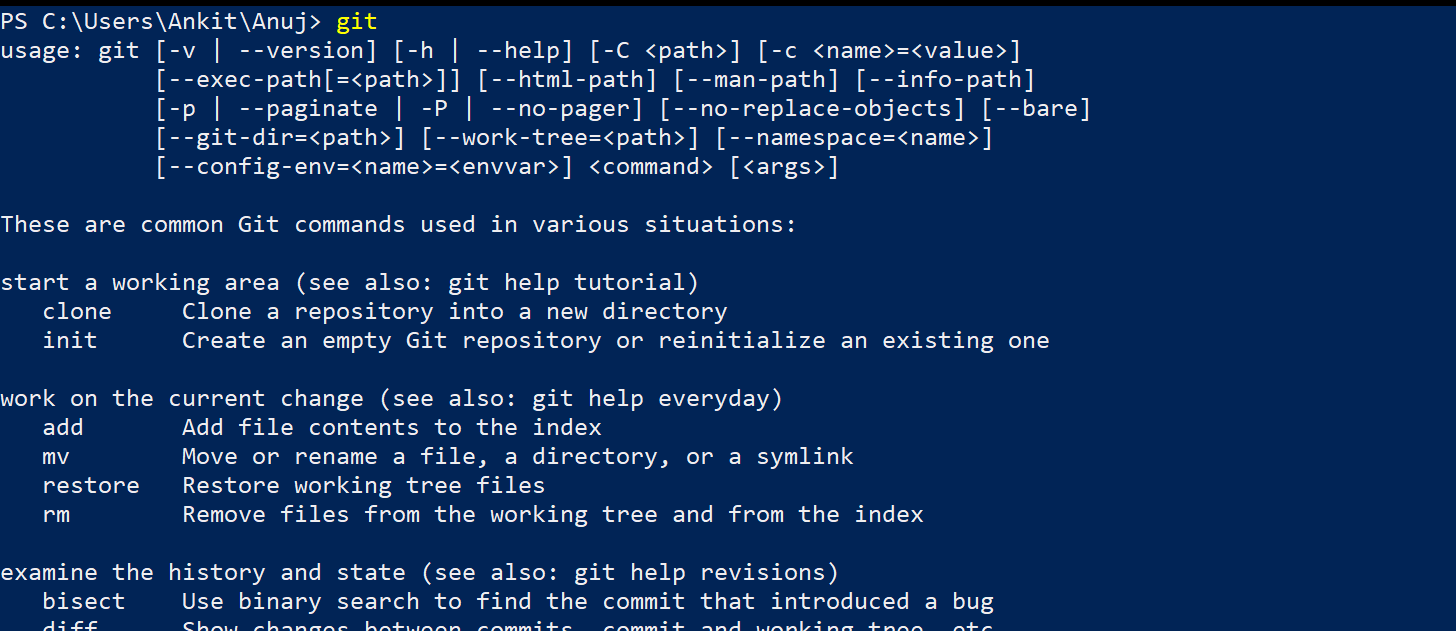
Type 'git' and if a list like below ones appears it means, git is properly installed and ready to use. you can open any CLI/Terminal/Shell to use git. A CLI/Terminal/Shell allows us to manipulate the files and folders using commands, it's the place where we will execute these commands, you can use Windows Prompt/PowerShell/Bash/Zsh etc.
Git Commands
There are some commands of Git with the help of which we can use Git and it's essential to know these commands:-
Command: "git init"
Explanation: Initialises an empty git file
Output:
git init
Command: "git status"
Explanation: Shows changes that are not saved
Output:
git status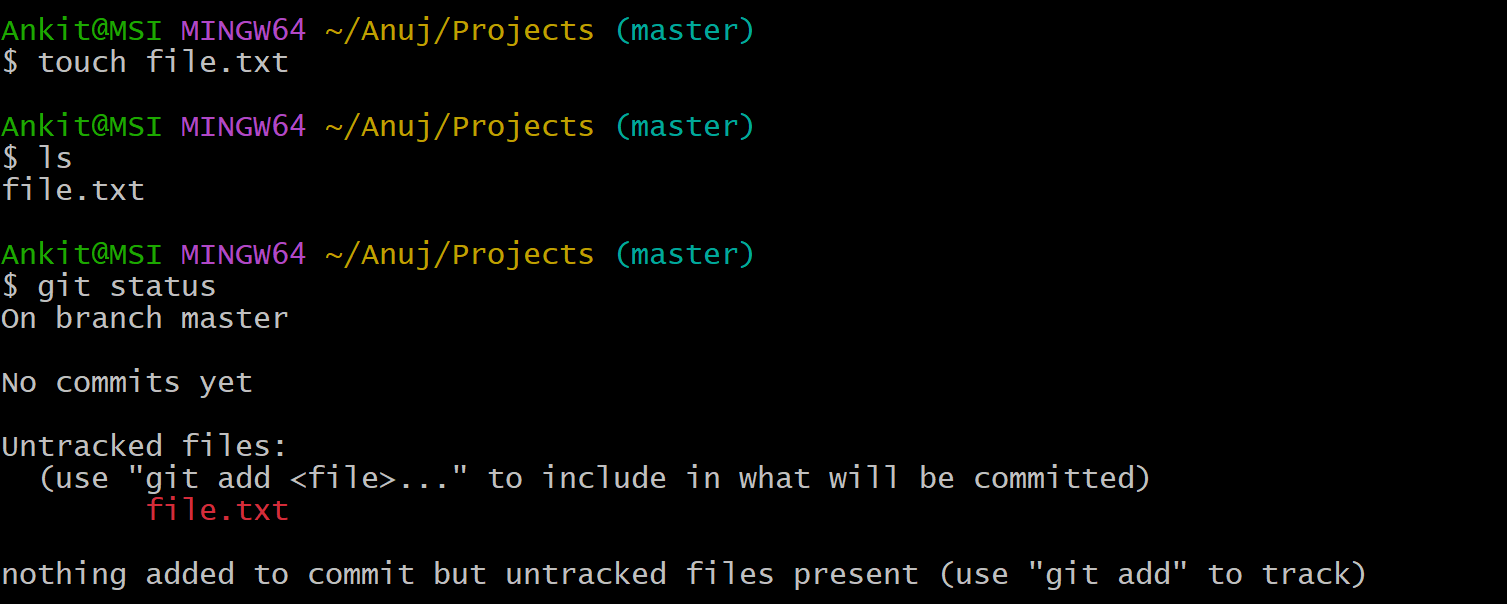
Command: "git add file.txt"
Explanation: Changes you made, gets saved
Output:
git add file.txt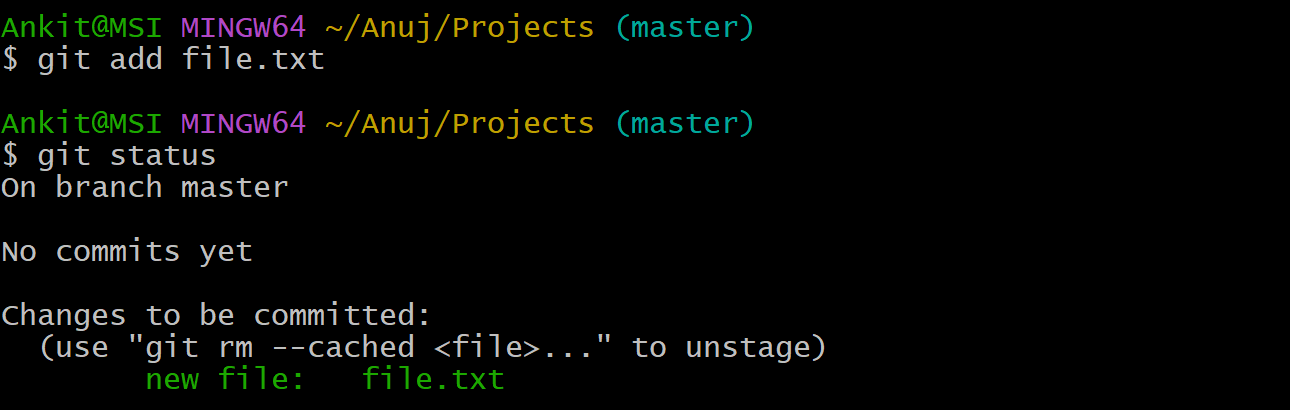
Command: "git commit -m "file_name.txt file added" "
Explanation: Makes the saved change as a commit with a message
Output:
git commit -m "file.txt file added"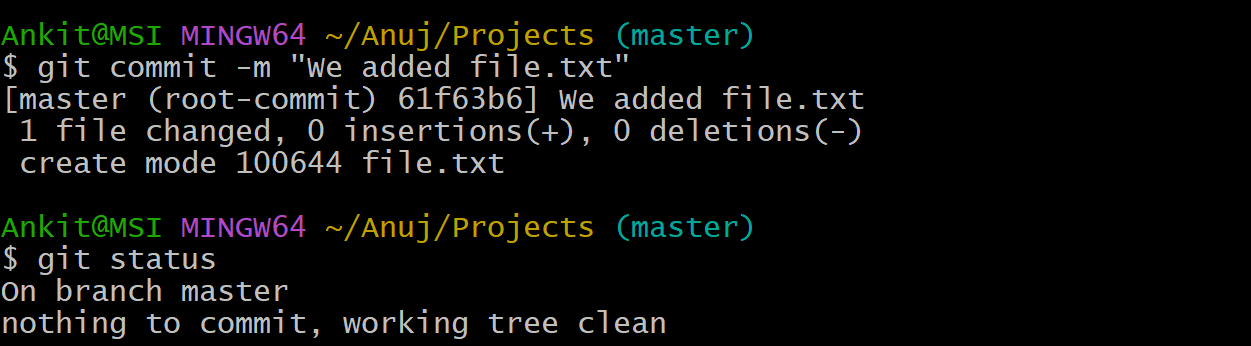
Command: "git restore --staged file.txt"
Explanation: Unsaves the file that you by mistake have saved
Output:
git restore --staged file.txt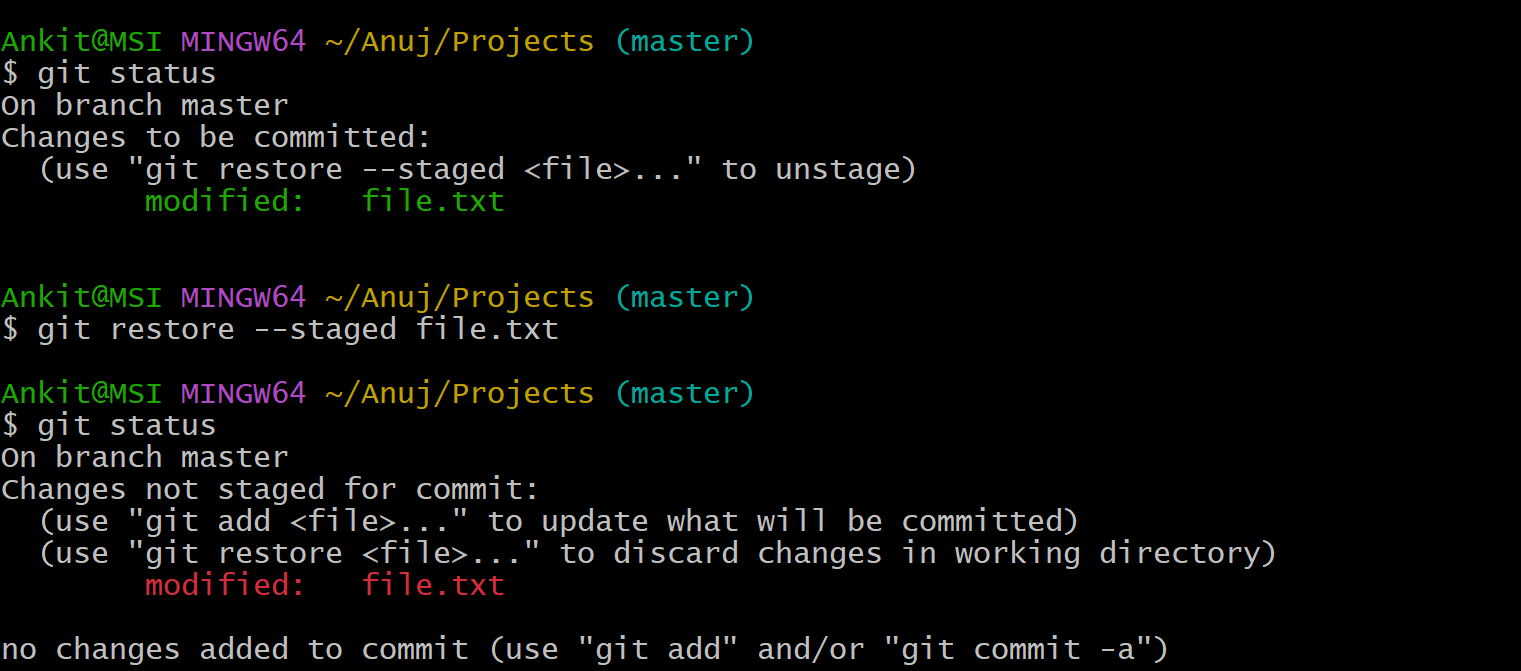
Command: "git log"
Explanation: Shows commit history
Output:
git log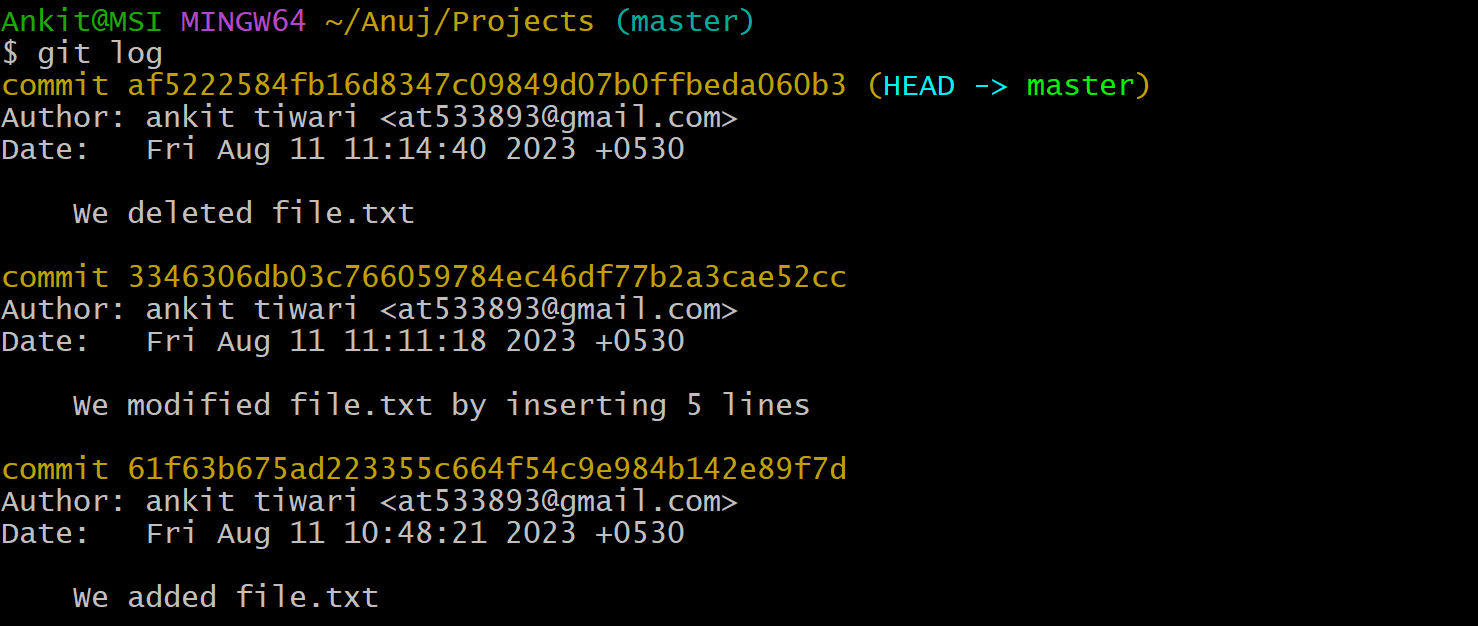
Command: "git reset commit_id"
Explanation: Removes all the commits made after that commit whose I'd you have inputted
Output:
git reset commit_id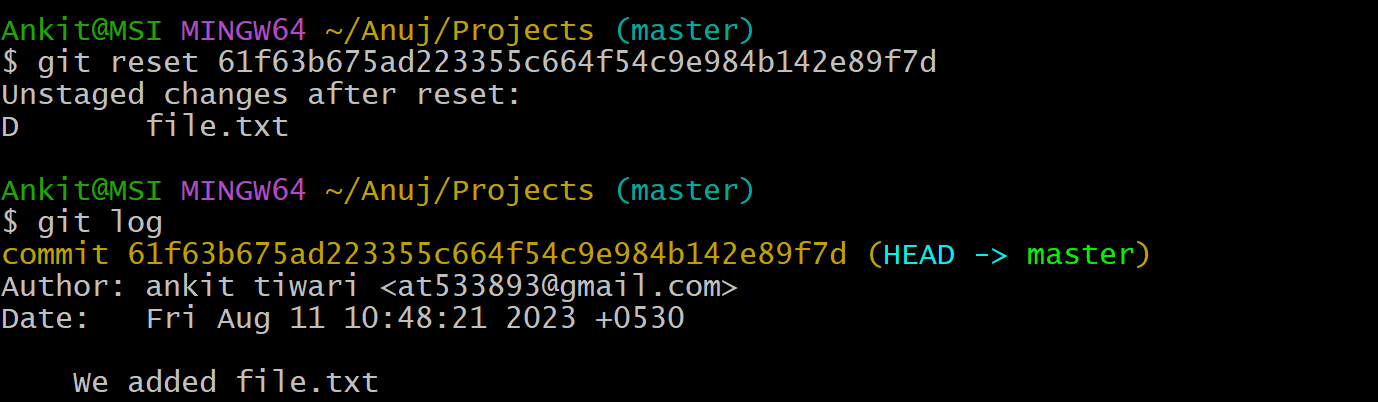
Command: "git stash"
Explanation: After saving some changes, instead of making a commit you move those saved changes somewhere else, and if you want you can bring them back.
Output:
git stash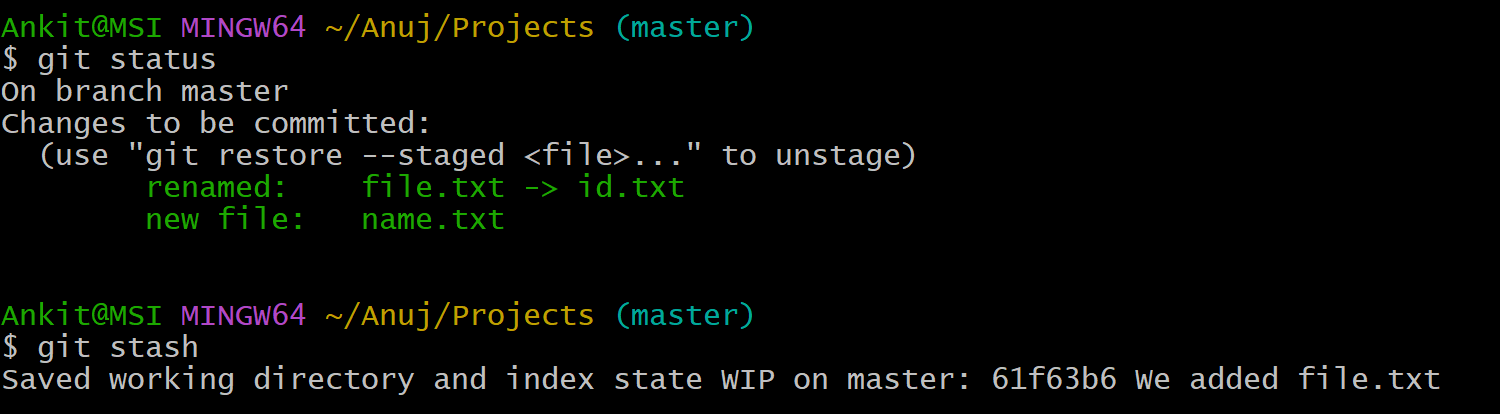
Command: "git stash pop"
Explanation: Brings those saved changes back
Output:
git stash pop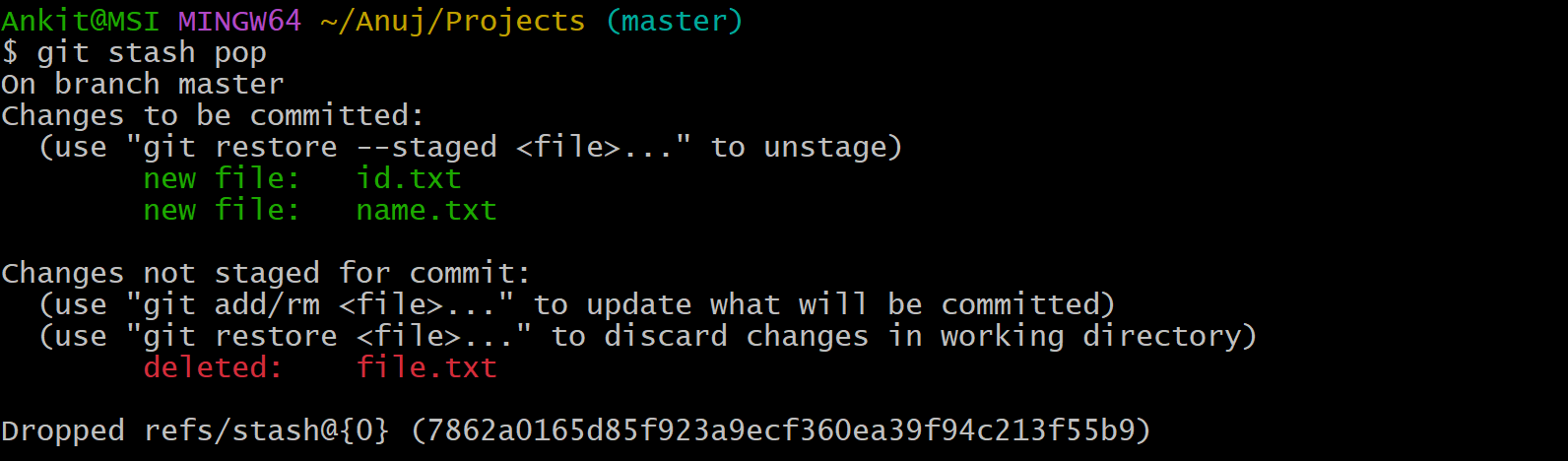
Command: "git stash clear"
Explanation: Clear the stash
Output:
git stash clear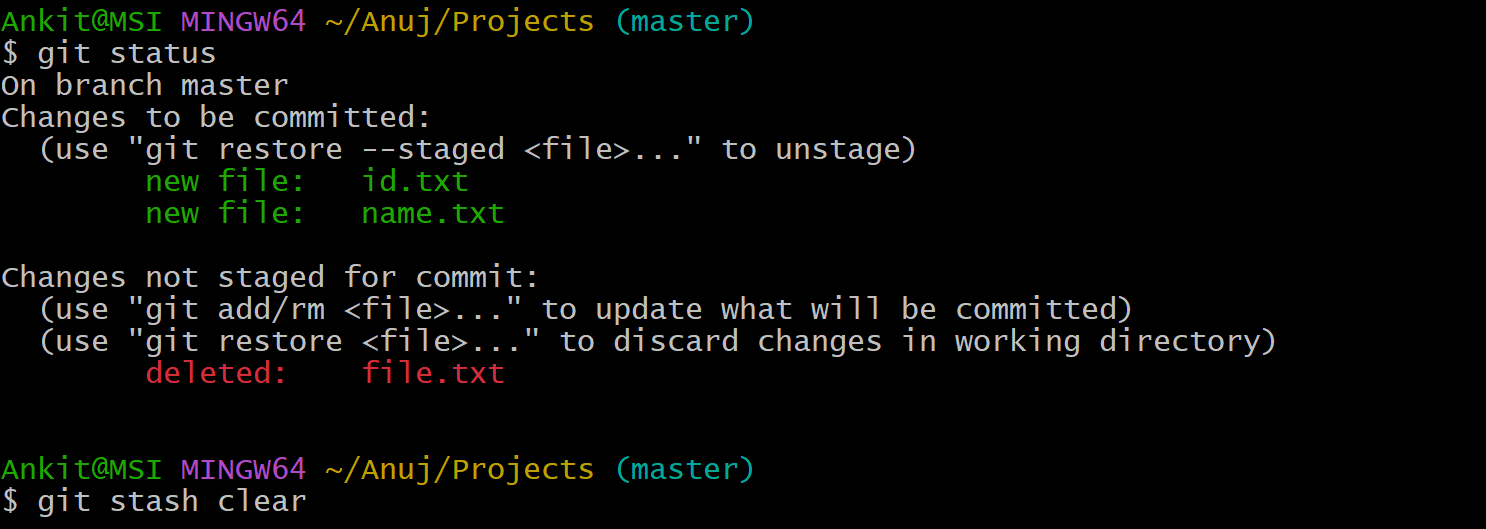
Command: "git remote add origin your_github_repo_url"
Explanation: Connects git to that repo
Output:
git remote add origin your_github_repo_url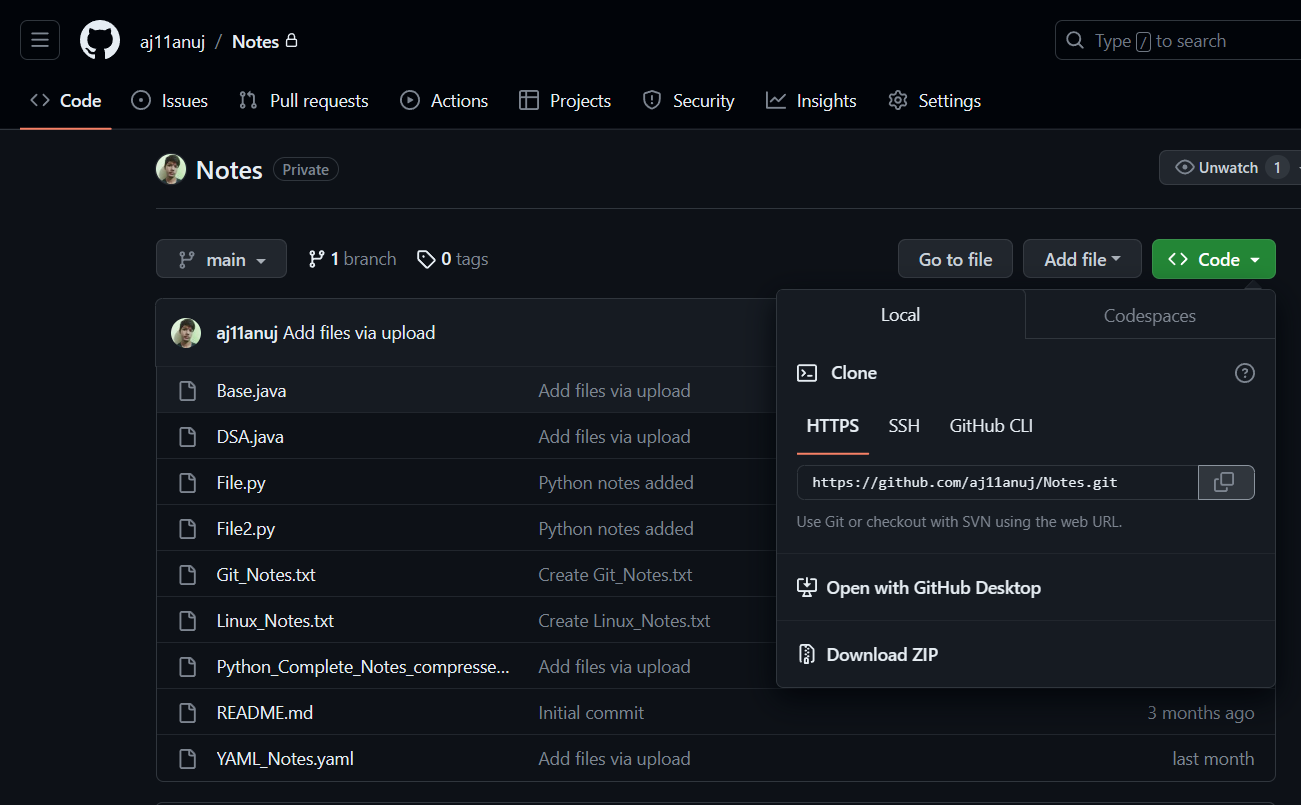

Command: "git remote -v"
Explanation: Shows all the repo's that are linked to your git right now fetch push
Output:
git remote -v
Command: "git push origin branch_name"
Explanation: Pushes those changes to GitHub
Output:
git push origin branch_name
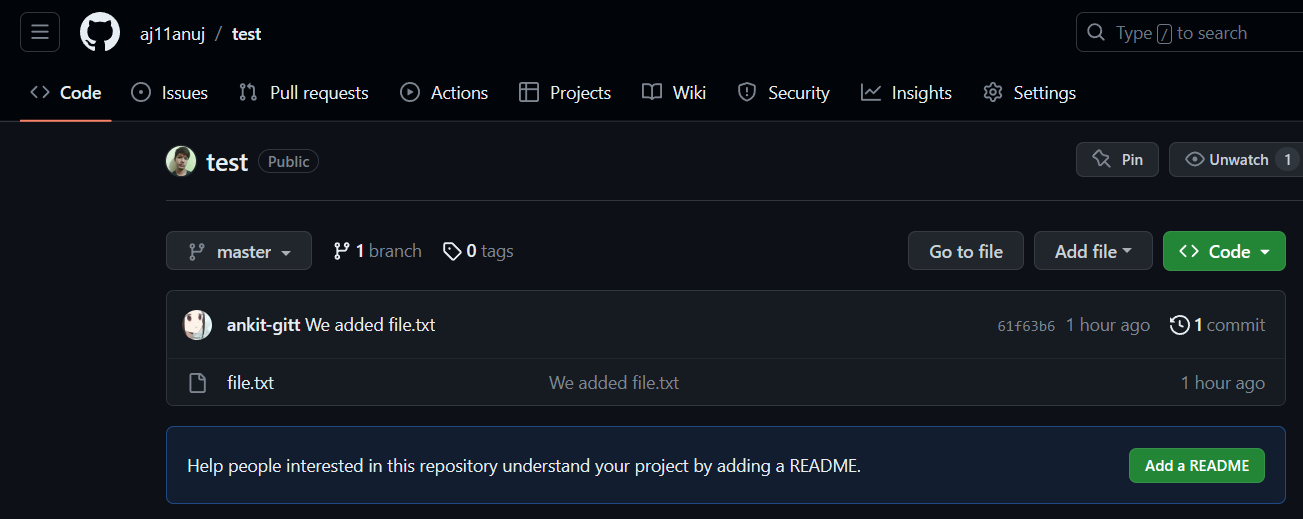
Command: "git branch branch_name"
Explanation: Makes a new branch
Output:
git branch branch_name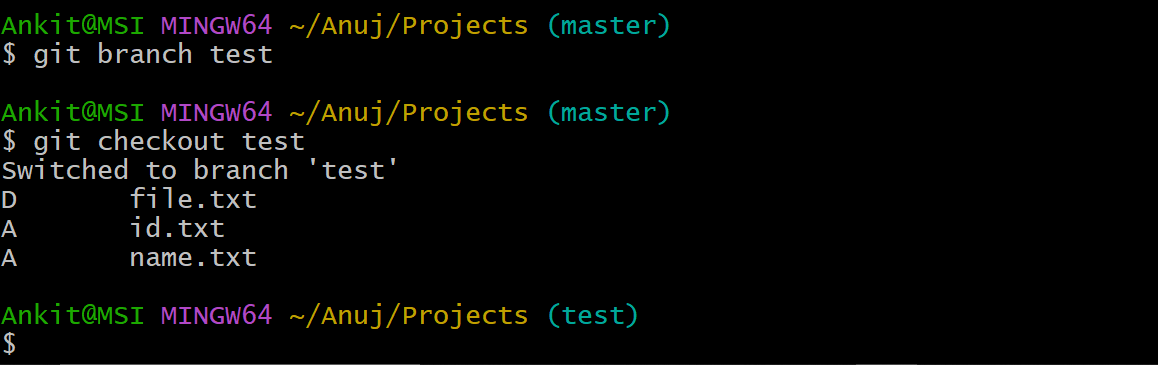
Command: "git checkout branch_name"
Explanation: git gets connected to that branch (also called head branch)
Output:
git checkout branch_name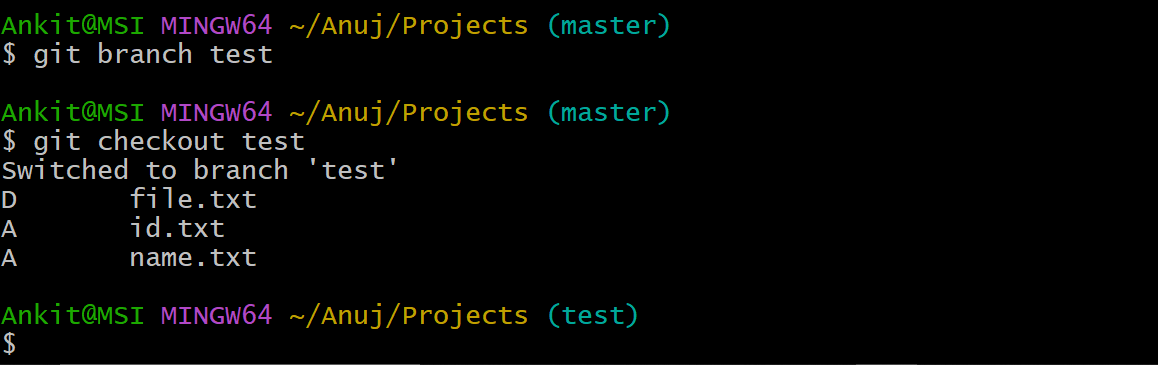
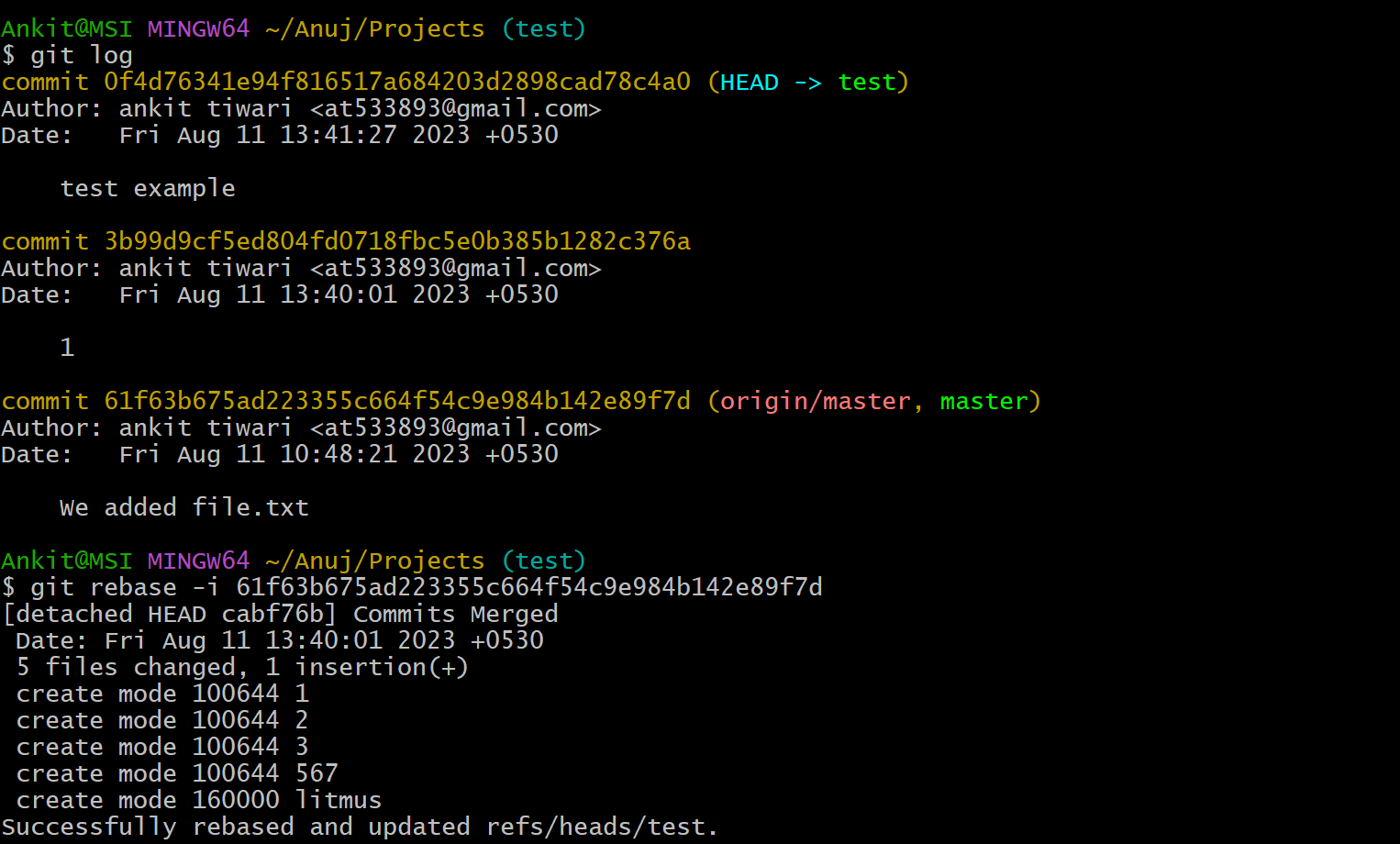
Command: "git rebase -i 1stcommit_id"
Explanation: Squashing Commits (Merging many commits into a single commit). A pick and squash prompt will be shown to pick the top squash (s) below ones Esc + : + x (allows you to add a message) : + x ( exit ). In case of a merge conflict, maintainers have to manually check and merge.
Output:
git rebase -i 1stcommit_id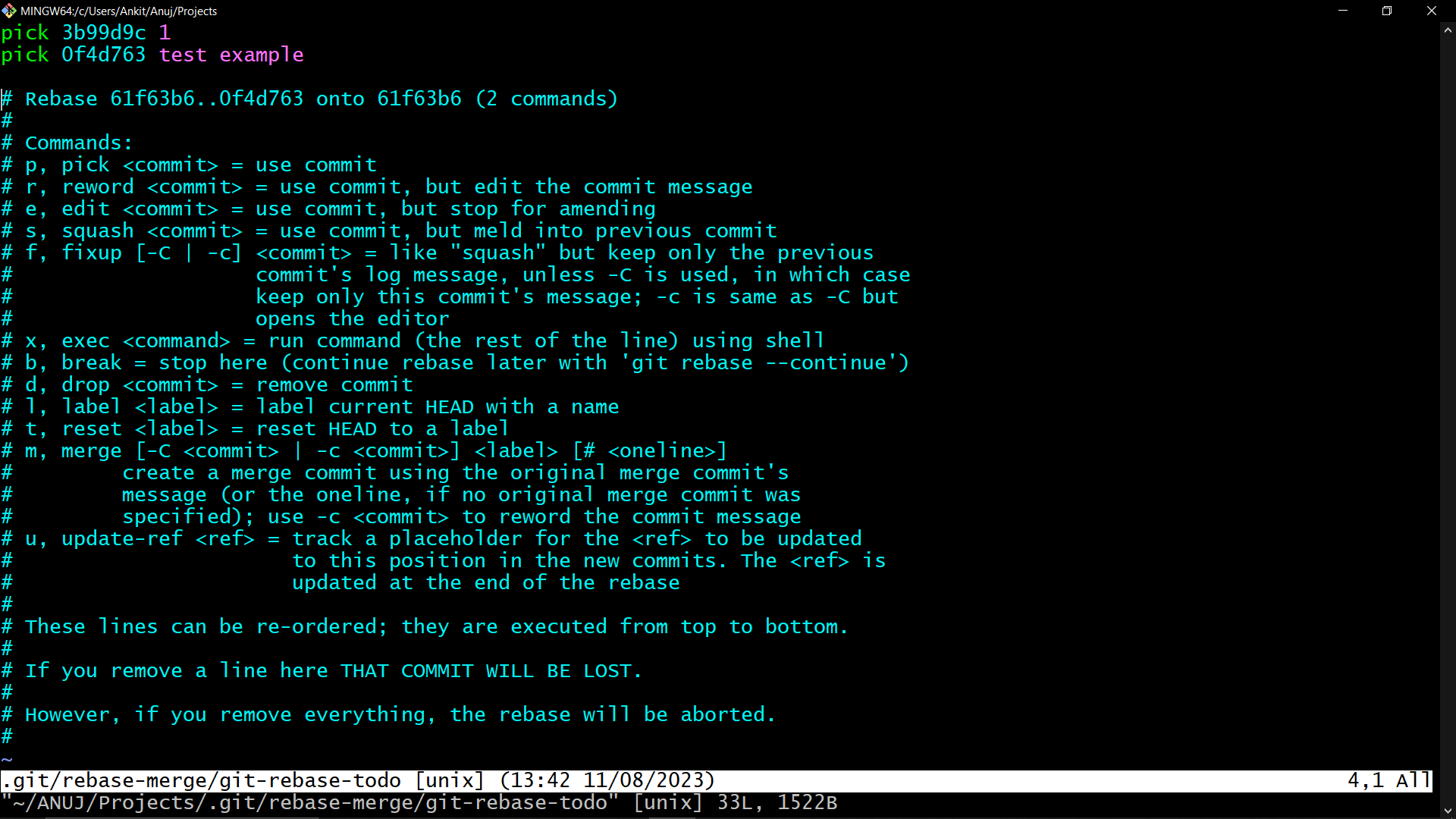
Conclusion
In a nutshell, Git is a VCS tool used to collaborate on projects and make changes to them while keeping a record of code revision history. Then we saw its installation and some of the most important git commands with examples. Many online platforms, such as GitHub and GitLab, provide hosting for Git repositories and offer additional features like issue tracking, code review, and continuous integration which we will learn in the next article.
Found this article insightful? Give it a thumbs up!